Real overview
Uses the save's map overview image — not a generic schematic.
Dashboard section
Vehicles on the real in-game map overview, coloured by farm, with an Overlay dropdown for crops, growth, soil, and more. Server owners use this as the public “what is happening on the farm” view — see Show your server.
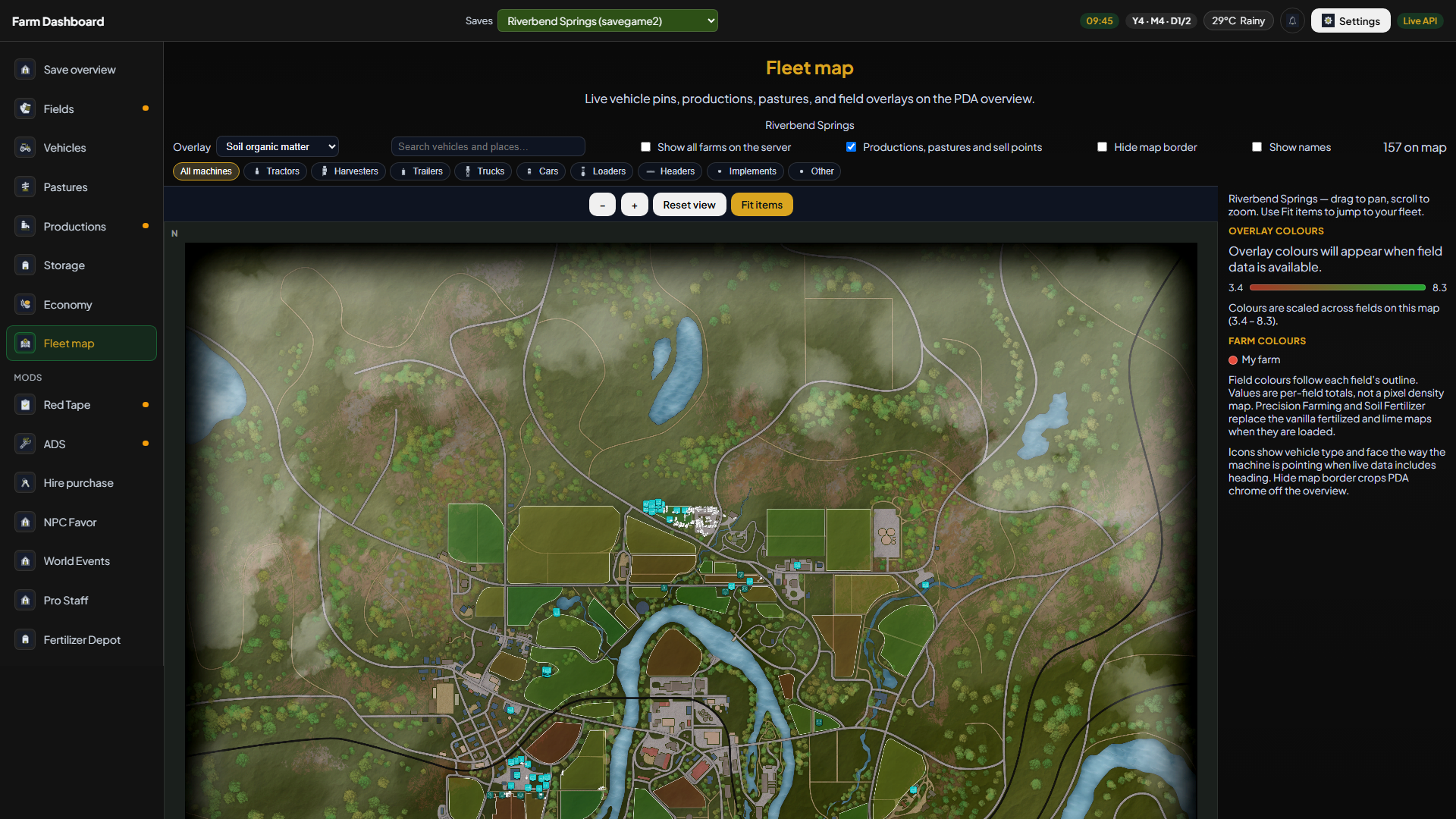
Uses the save's map overview image — not a generic schematic.
Multiplayer farms stay distinct so you see who left a tractor in the shop lot.
Growth and related layers when the export includes them.
The list view is fuel and wear; the map is “where is it?”
In the app
Open Fleet map in the sidebar. Zoom and click pins the same way you would scan the PDA — without tabbing back into FS25.
Layers
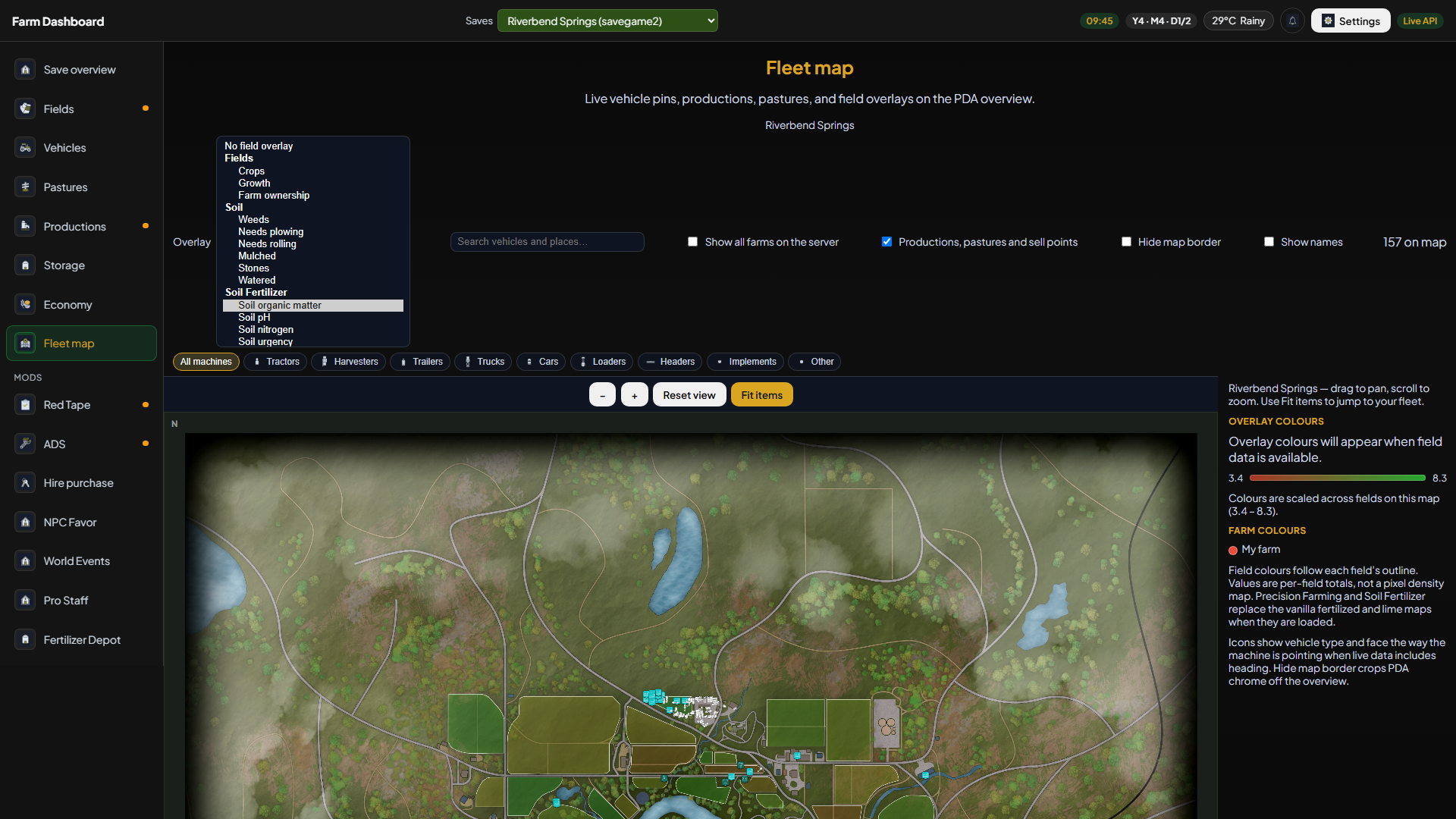
The Overlay control sits above the map. Pick no overlay, crops, growth, farm ownership, weeds, ground jobs, soil, or Precision Farming / Soil Fertilizer layers when those mods are exporting. Colours follow each field outline — not a second PDA fruit map.
In game
The dashboard reads positions the mod exports. The in-game PDA remains the live GPS while you drive; this screen is for the desk, tablet, or Discord link.
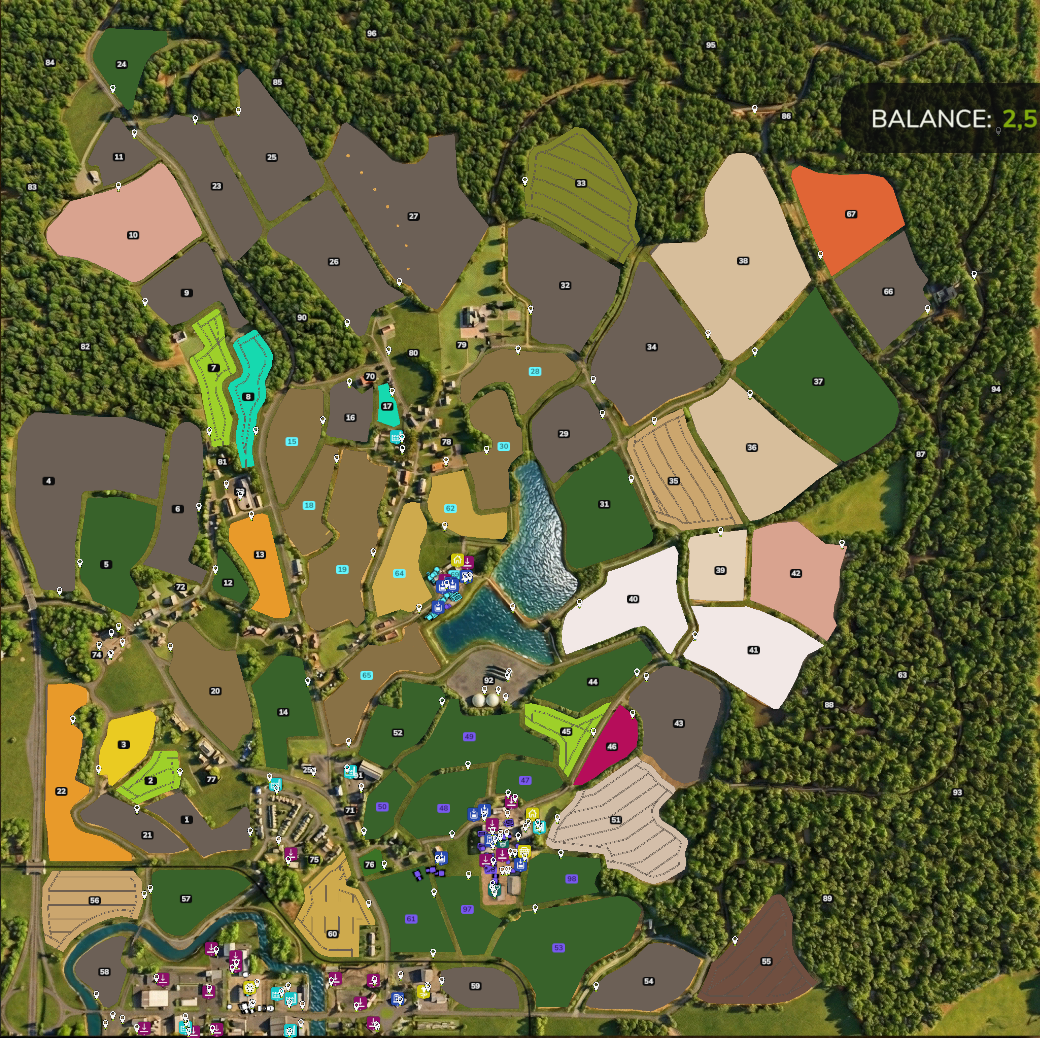
Share a read-only dashboard URL so members see the map without joining the session.
Explore other sections